Marie's Adventure Steam Input & Steam Deck
How to map a controller on Steam Deck, what works in handheld, and which menus stay keyboard-first.
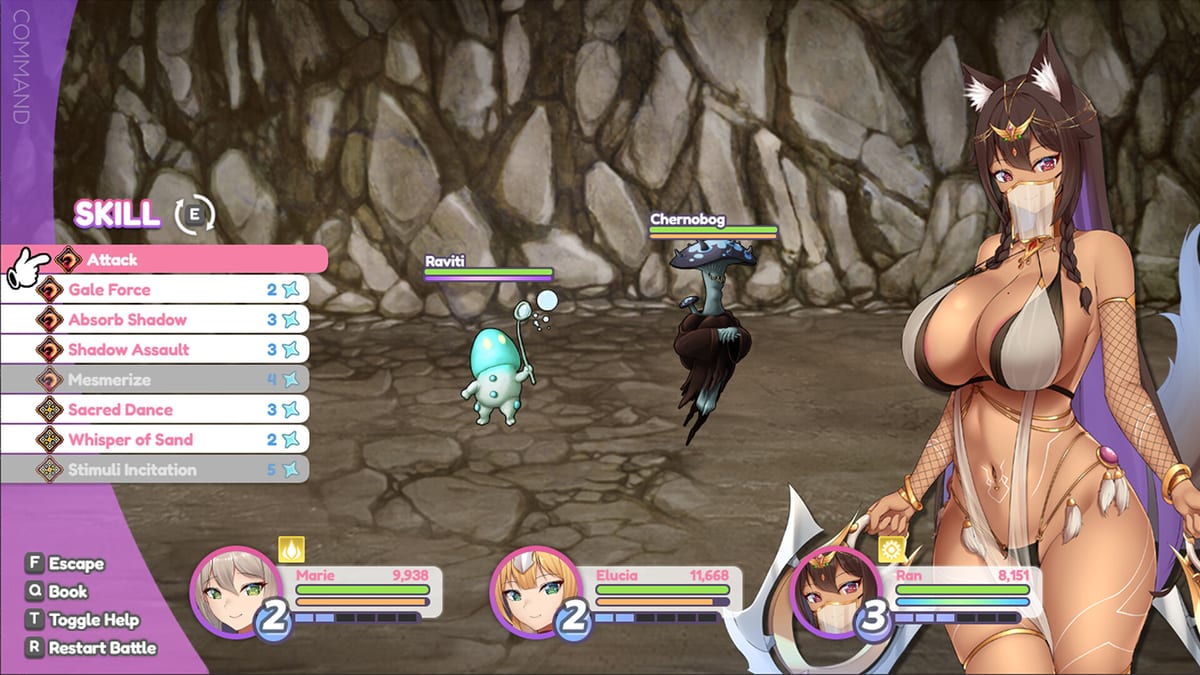
Marie’s Adventure is a keyboard-first Windows H-RPG, but the Steam release accepts controller input through Steam Input without modifying game files. This page covers the controller layer that makes the game playable on Steam Deck, desktop gamepads, and handheld PCs that piggyback on the same overlay. It also calls out the few menus that still expect a cursor — usually brothel dialogue trees and the pregnancy tracker overlay.\n\nBefore mapping anything, install the latest build (v1.12) and run at least one keyboard session so you know which inputs are required versus which are decorative. The game does not ship an official controller profile, so you build the layout from Steam Input.\n\n## Why the game is not officially verified\n\nSteam Deck verification requires multiple trackpads, real glyph rendering, no text input prompts, and consistent font scaling. Marie’s Adventure has multiple dialogue trees that ask for letter input by name, plus CG scenes that lock the cursor. That is why the title sits in the playable bucket, not verified. Gameplay works, but you should expect to lean on the right trackpad for letter pickers.\n\n## Recommended Steam Input template\n\nOpen Steam Big Picture (or the Deck overlay) → Marie’s Adventure → Manage Shortcuts → Controller Layout → use Community Layouts first, then refine. The template below is what most players converge on after a few sessions:\n\n| Action | Default mapping | Why |\n| --- | --- | --- |\n| Confirm | A | Dialog advance, menu pick |\n| Cancel / back | B | Menu back, cancel scene |\n| Menu / pause | Start | In-game pause, save menu |\n| Open map | Select | World map pin |\n| Move | Left stick | 8-direction walk |\n| Run | L3 click | Toggle run speed |\n| Interact | Y | Examine, talk, harvest |\n| Special action | X | Skill in combat |\n| Cycle party | D-pad left / right | Swap active character |\n| Cycle target | D-pad up / down | Combat target switch |\n| Inventory | LB | Item menu |\n| Skill menu | RB | Skill tree |\n| Cursor | Right trackpad | Letter picker, brothel scene |\n| Gyro off | — | Pointer-heavy screens still use the trackpad |\n Save the layout as MariesAdventure-Deck so the rest of the family can switch quickly between verified games and this one.\n\n## Steam Deck specifics\n\n- Resolution: stay on 1280×800 for the cleanest UI. Native 1280×800 falls back gracefully.\n- Frame cap: cap at 60 FPS. RPG Maker scenes stay under that ceiling; uncapping does not improve input feel.\n- TDP: 12–15 W is plenty. Lower to 9 W for text-only sections to save battery.\n- Performance overlay: enable, then disable after the first session — the overlay can layer over pregnancy dialogue if you tap it mid-scene.\n- Quick suspend: supported. The game uses F5 reload (mapped to Select on Deck), so suspend/resume never breaks a save.\n
Desktop controller tips\n\n- Xbox and DualSense controllers work through the same Steam Input layer. The layout names survive between devices.\n- If you prefer the Xbox button colors, label A/B/X/Y explicitly — the in-game prompts say Confirm / Cancel / Skill / Interact, not glyphs.\n- Disable Steam Cloud sync before swapping controllers if you also run the game from a non-Steam launcher. The game does not list Steam Cloud, so this is preventive only.\n- For keyboard + mouse users who want a one-handed pad, map Confirm/Cancel to shoulder buttons and use a foot pedal for Interact.\n
What still requires a keyboard (or touchpad)\n\n1. Name entry. When the pregnancy UI asks for a child name, you must use a keyboard or the Deck virtual keyboard. The right trackpad cursor cannot type.\n2. Some brothel scene menus default to numeric input. The Deck keyboard works but flickers — slow down for accuracy.\n3. Save slot rename is keyboard only. Most players do not rename saves, but if you do, plan around the on-screen keyboard.\n4. Debug console (if enabled by a future patch) is keyboard only. The wiki will update when an official toggle appears.\n
Common issues and fixes\n\n- Right stick does nothing. The game does not use the right stick as a camera control. Map camera pan to L-stick click if you want peek controls, otherwise leave it unused.\n- Gyro drift. Steam Input gyro can drift on Deck after suspend. Re-center by tapping both stick clicks simultaneously.\n- Letter picker not focusable. Open the keyboard with the Steam button → Keyboard, then tap the highlighted letter with the right trackpad.\n- Performance dips during CG scenes. Set TDP to 15 W or lower the in-game resolution scaling. CG is bound to the RPG Maker scene script, not the GPU.
Pairing this with other guides
- Controls — full keyboard reference and F5 reload behaviour.
- System Requirements — official Steam minimums and unsupported platforms.
- Troubleshooting — what to try if the controller layer refuses to load.
- Save Files — backup hygiene before you run long sessions on handheld.
FAQ
- Does the developer plan native controller support? Not announced. Steam Input is the official workaround. Community templates are the only realistic path until a future numbered patch.
- Can I use gyro aim? The game has no aiming, so gyro is decorative. Disable it to save battery.
- Does Steam Deck sleep break saves? No. F5 reload (mapped to Select) and the engine’s autosave handle suspend without corruption.
- Will my Xbox One pad work on Windows 11? Yes, through Steam Input. Outside Steam you must rebind in the game’s control panel — there is no in-game remap.
Treat Steam Input as the single source of truth for controller play. The layout template above covers 95% of menu prompts; the remaining 5% falls back to the Deck virtual keyboard or a mouse tap.
Frequently Asked Questions
Quick answers to the most common questions.
Is Marie's Adventure verified on Steam Deck?
No, the title sits in the Playable bucket because letter pickers and CG scenes still need a cursor or keyboard.
Which controller layout is recommended?
Use the Community Layout search for MariesAdventure, then refine A/B as Confirm/Cancel, Y as Interact, and Select as F5 reload.
Do I need to enable Steam Cloud first?
No. Steam Cloud is not listed for app 4819360. Local backups via the save files guide are still required.
What stays keyboard-only?
Name entry for newborn children, brothel numeric menus, and the save slot rename field. Everything else maps through Steam Input.
Does the game support gyro aim?
No. Gyro is decorative at best; disable it to save battery.